Workspace and teams
Issues, wiki pages, and metrics in GoalTrack all live inside a workspace. A workspace can hold several teams, and every issue belongs to exactly one team.
Create a workspace
Section titled “Create a workspace”- Sign in at goaltrack.dyld.kr.
- On your first visit you see a Create a new workspace button. Click it and enter a name for the workspace.
- The address field is filled from the name — it is the short English name that appears in your workspace URL. If the name has almost no Latin letters or digits, an address starting with
workspace-is filled in instead. You can edit it. - Names that collide with paths the app uses (for example
wikiordocs) cannot be used as an address. The reason appears under the field while you type, and the create button stays disabled until you change it.
A new workspace comes with:
- One team named after the workspace with
Teamat the end — you can create issues right away. - The wiki’s General space with two starter pages (Getting started with GoalTrack and Working rules for new teams).
- A label group called Type (Task · Bug · Story · Chore · Inquiry) for issue types — see Sort issues by type.
- Team metrics such as throughput and cycle time — they fill in as you use issues. It is normal for them to be empty on day one.
Create a team
Section titled “Create a team”A team is a group that works together (for example engineering, design, or operations). Each team has its own issue prefix: issues in a team whose identifier is ENG are numbered ENG-1, ENG-2, and so on.
- Click the + next to Your Teams in the sidebar. Create new team under Settings › Teams opens the same dialog.
- Enter a team name and an identifier. The identifier is 1–6 uppercase letters or digits starting with a letter, and it becomes the prefix of the team’s issue numbers.
- To put it under another team, pick one in Parent team (optional). Leave it empty for a top-level team.
- The team appears under Your Teams in the sidebar. Expand it to see just that team’s work under Issues · Projects · Views.
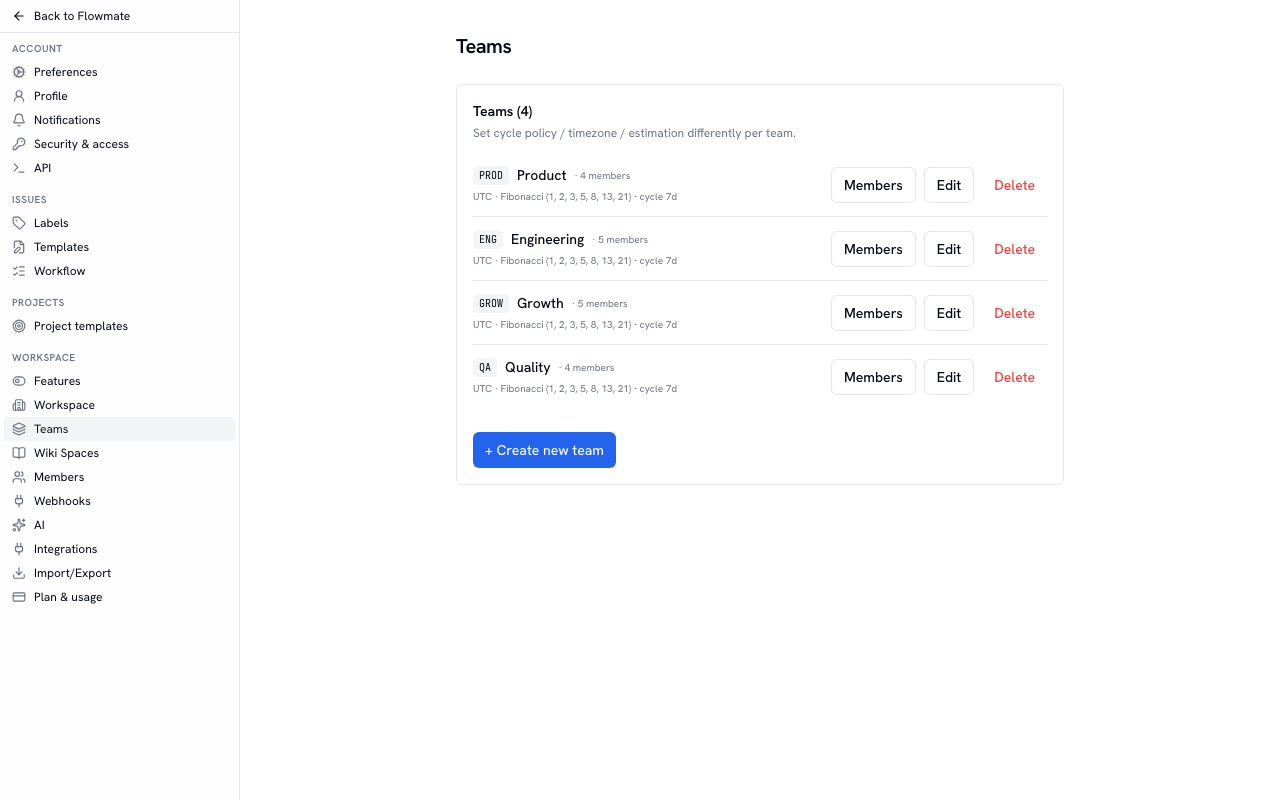
Settings › Teams (workspace owners and admins) is where you rename a team and manage its members. Team admins do the same from the team row’s ··· › Team settings and Team members in the sidebar. If you aren’t an admin, the same dialogs open read-only.
Sub-teams
Section titled “Sub-teams”A team can have sub-teams (for example Engineering › Frontend › Web — up to 5 levels below a top-level team).
- Shown as a tree. Your Teams in the sidebar and Settings › Teams indent sub-teams under their parent. In the sidebar, expand a parent team to see its sub-teams; the team you’re viewing always stays visible because its parent teams expand.
- Teams you can’t pick say why. In the parent team list, the team itself, its own sub-teams, positions deeper than 5 levels, and teams you don’t manage can’t be picked, and the reason is shown on the same line.
- Moving. For an existing team, pick a new parent under Parent team in Team settings and press Move (separate from Save). Its sub-teams move with it and the new parent team’s admins will manage them too — this is shown next to the button before you move.
- Sub-team members are also parent team members. If you add someone who isn’t in the parent team, or a move would add people to the new parent team, a confirmation first shows who joins which team. If you cancel, nothing changes. Removing someone from a parent team also removes them from its sub-teams (also confirmed).
- Parent team admins also manage sub-teams. They can change a sub-team’s settings and add or remove its members from ··· › Team members.
- Who joins a new sub-team automatically: only workspace owners and admins who are members of the parent team. Everyone else joins from Team members after creating it — the new team dialog tells you in advance.
- A parent team’s issue view includes sub-team issues. The count shows · includes sub-teams. To see only that team’s issues, turn off Include sub-team issues in display options. Dashboards and Analytics always count just that team.
- Sub-teams use their parent teams’ issue templates (including teams further up). When creating a sub-team issue you can pick a parent team’s template, and a parent team’s template can be the sub-team’s default issue template. Templates of teams in other branches aren’t available, and a parent team doesn’t use its sub-teams’ templates. A template whose status can’t be used by the team (for example a status only the parent team has) can’t be set as that team’s default.
- Sub-team issues can go into their parent teams’ cycles (including teams further up). The cycle picker on an issue shows the cycles of the issue’s team and its parent teams. Cycles of teams in other branches aren’t available. A sub-team can still create its own cycles.
- Detaching a team or moving it under another team cleans up what it can no longer use. For each team that is no longer above this team (and its sub-teams):
- A team that used one of its templates as the default issue template gets a copy of that template as its own team template, and the copy becomes the default. The original stays with its team.
- Issues in its unfinished cycles are removed from those cycles. Issues in finished cycles stay (the record of past sprints is kept).
- Before the move, a confirmation shows how many teams get a template copy and how many issues leave a cycle. Other people’s draft issues are included in that count. If you cancel, nothing changes.
- Deleting a parent team turns its sub-teams into top-level teams, with the same cleanup. The deleted team’s cycles are deleted with it even if they are finished, so every issue in those cycles leaves the cycle, whichever team it belongs to. The delete confirmation shows those counts too.
- Importing a GoalTrack export restores the team hierarchy. Teams the import creates are placed back under their parent team from the export. The parent of a team that already existed is not changed. If the parent team can’t be found, the placement would create a loop or go deeper than 5 levels, the person importing doesn’t manage that parent team, or attaching it would require adding this team’s members to the parent team, the team comes in as a top-level team and the import result lists the team and the reason as a warning (
TEAM_PARENT_SKIPPED). The import never quietly adds team members to a parent team — attach it yourself with Move after the import if you need to. Sub-team issues that were in a parent team’s cycle go back into that cycle once the hierarchy is restored; if it isn’t restored and the team can’t use that cycle, the issue comes in without a cycle and a warning (CYCLE_NOT_IN_TEAM_LINEAGE) is listed.
Invite people
Section titled “Invite people”Workspace owners and admins can invite people.
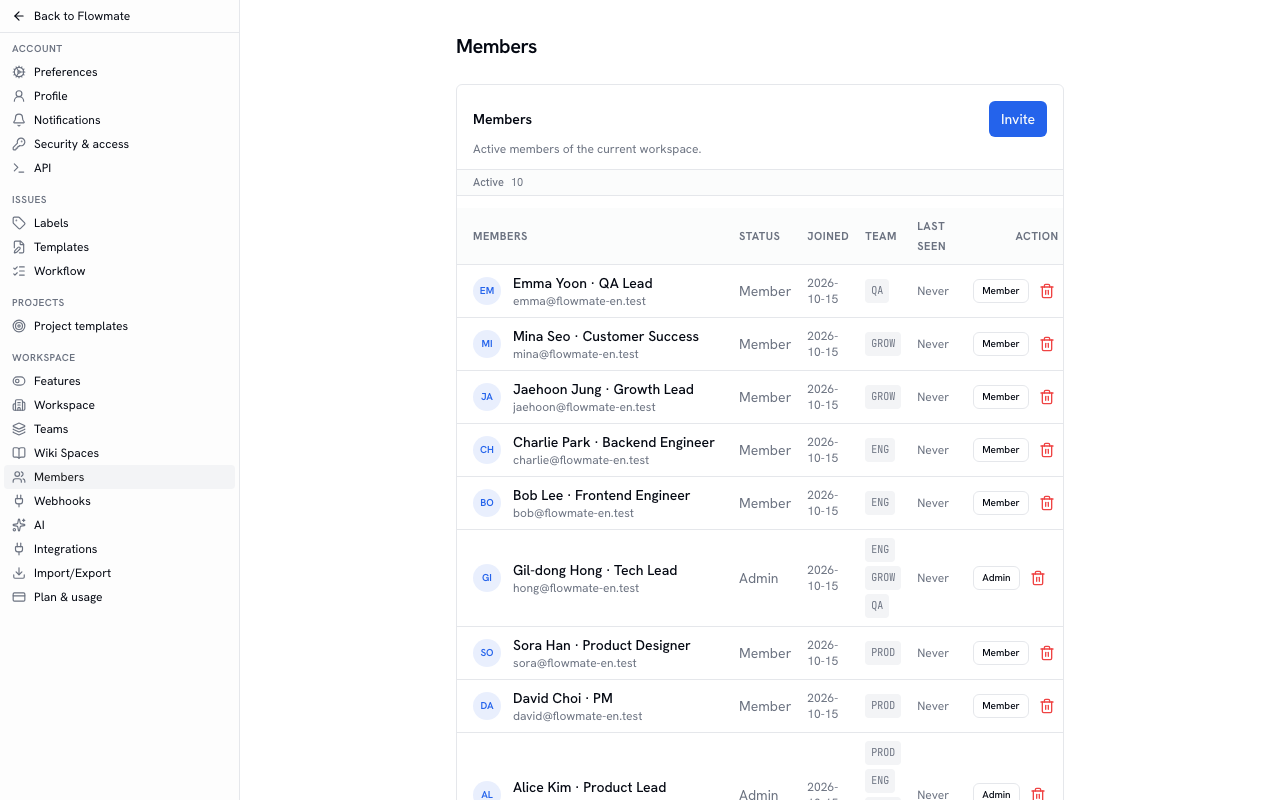
- Click Invite people under Try in the sidebar to open Settings › Members.
- Click Invite and enter email addresses. Separate several people with commas, spaces, or line breaks.
- Pick a role — Admin (change workspace settings and manage members), Member (create, edit, and delete issues and docs), or Viewer (read only).
- Click Send invite. An invitation email goes out. The invitation is valid for 7 days, and you can also copy the invite link shown on screen and share it yourself.
The invitee must sign in with the invited email address to accept. Invitations not yet accepted stay under Pending invitations on the same screen, where you can revoke them.
Go on to Your first issue and project and write down some work.