Goals and metrics
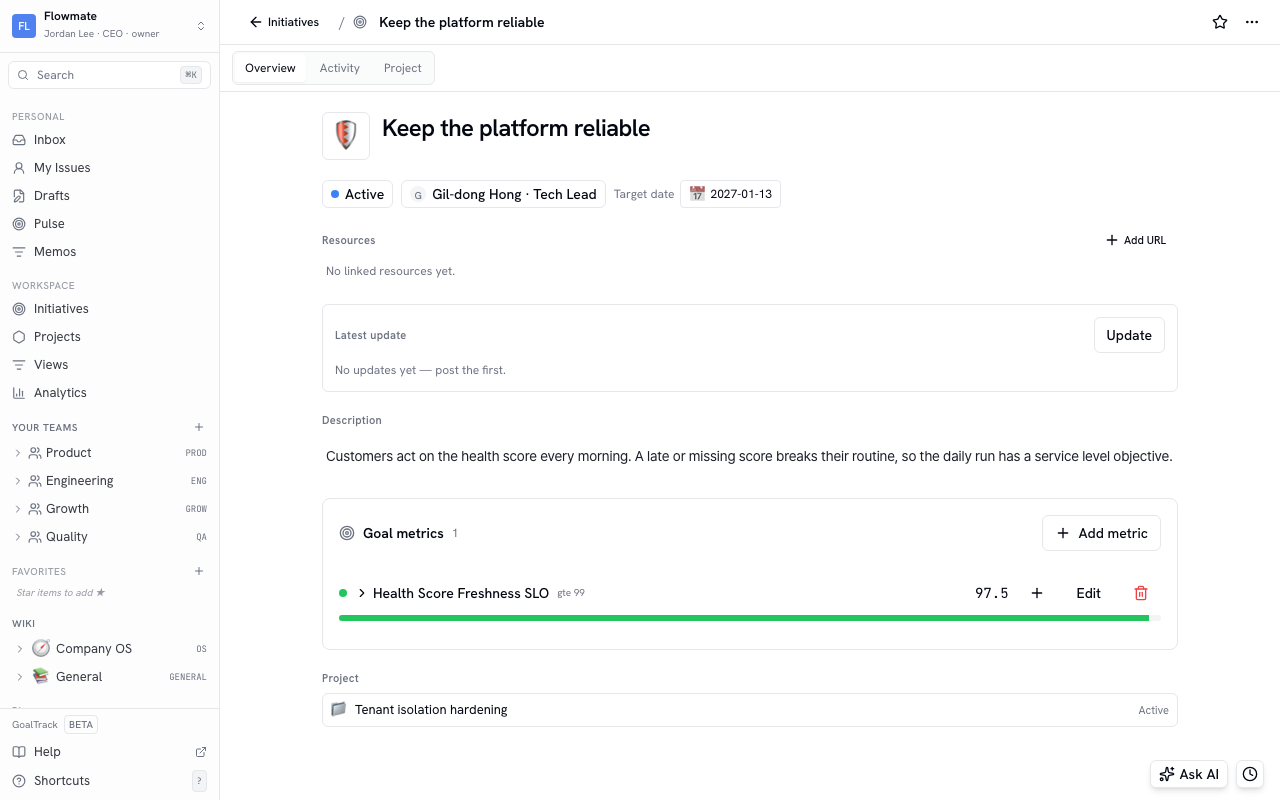
An initiative is a goal you want to reach this quarter. Link projects to an initiative and you can always see which work serves which goal; link a goal metric and one number tells you whether you reached it.
Set a goal with an initiative
Section titled “Set a goal with an initiative”- In the sidebar, go to Workspace › Initiatives and click Create new.
- Enter a name and pick a status, owner, and target date.
- The initiative list is split into status tabs (Active · Planned · Completed). If a new initiative is not showing, check the tab.
We recommend no more than three initiatives per quarter. With more, it gets unclear what matters.
Link projects to an initiative
Section titled “Link projects to an initiative”Pick the initiative from the Initiative chip when you create a project, or change it on an existing project’s page. The Projects tab on an initiative’s page lists its linked projects.
Link a goal metric
Section titled “Link a goal metric”- Open the initiative and click Add metric in the Goal metrics section.
- Choose one of two options.
- Create new — enter a metric name, a target, a comparator (≥ at least the target · ≤ at most the target · = equal to the target), and the current value. Set an optional off-track line to see when you have drifted far from the target.
- Link BI metric — pick a metric you already created under Metrics. The current value is pulled automatically from that metric’s values.
- Linked metrics appear in Goal metrics with their target and current value. Show chart draws the trend with the target line.
Start with one goal metric per initiative. One number should tell you whether you made it or not.
Create a metric and add values
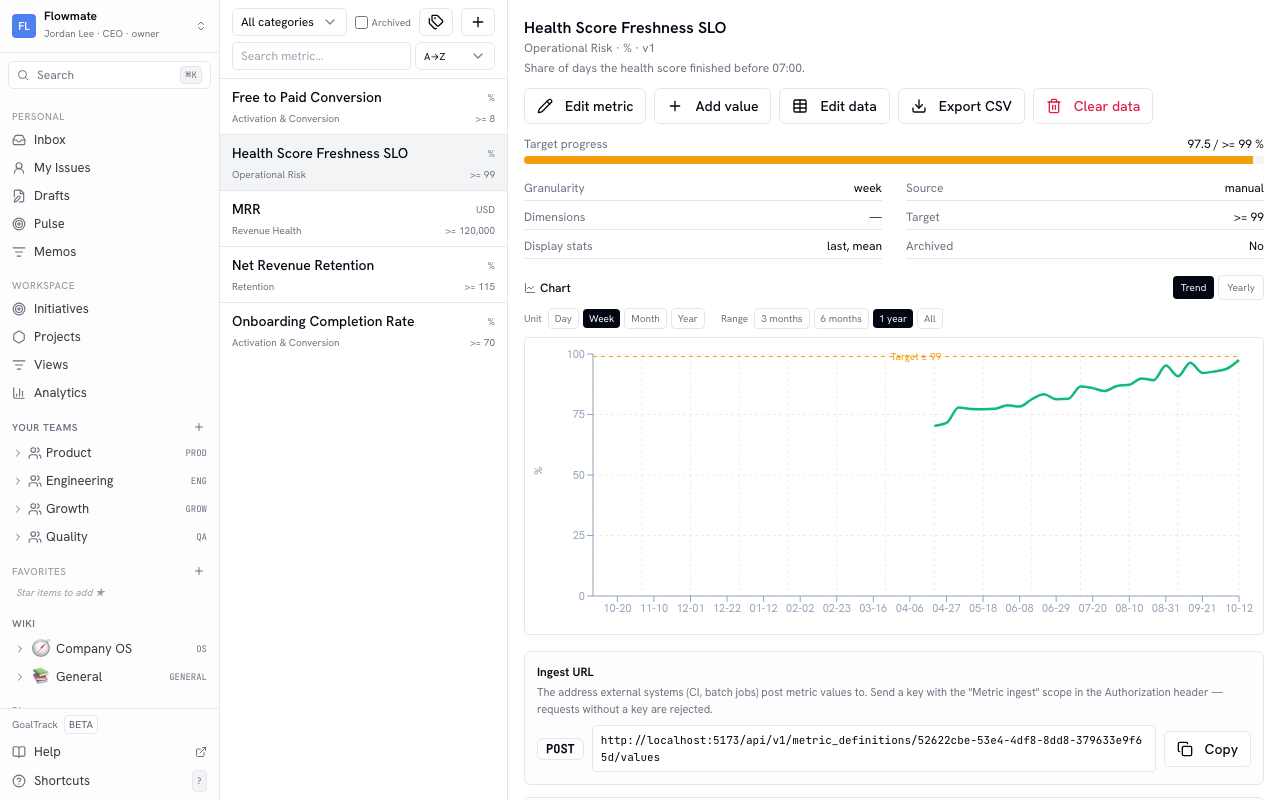
Section titled “Create a metric and add values”- Under BI › Metrics in the sidebar, click + to open the New metric dialog.
- Set a name, unit, category, and granularity (day · week · month), and optionally a target value and comparator. The target is drawn as a dashed line on the chart.
- Open the metric and click Add value. Change the time to add values for past dates.
To send values automatically on a schedule, use the samples under Send values automatically on the metric’s page (a curl one-liner, a GitHub Actions schedule, and an instruction for an AI agent), or see Metric ingest.
When no new value has arrived for a while, the metric list, the metric page, and dashboards show “No new value for N days — last value …”. Check whether the script or CI schedule that sends values has stopped.
Team metrics such as throughput and cycle time are calculated by GoalTrack from your issues. You do not need to add values, and they are empty on the first day you use issues.
- To see several metrics on one screen, read Track goals on a dashboard.
- To record why you chose a goal and what you decided, read Record decisions in the wiki and link them to issues.